Getting started
From install to your first prompt: models, Developer Profiles, Trello, image model and code completion.
Everything is configured in the CONFIG tab of the iNoU panel. Keys and tokens are verified with their provider before they are saved and stored in VS Code SecretStorage (your OS keychain). Commands starting with / are listed by /? and explained in the commands guide.
1. Install and accept the agreement
Install iNoU Agent for VS Code from the Marketplace, click the iNoU icon in the Activity Bar and accept the short agreement. Nothing runs before that. Until a model is ready, the chat points you to CONFIG ▸ LLM models.
2. Google Gemini
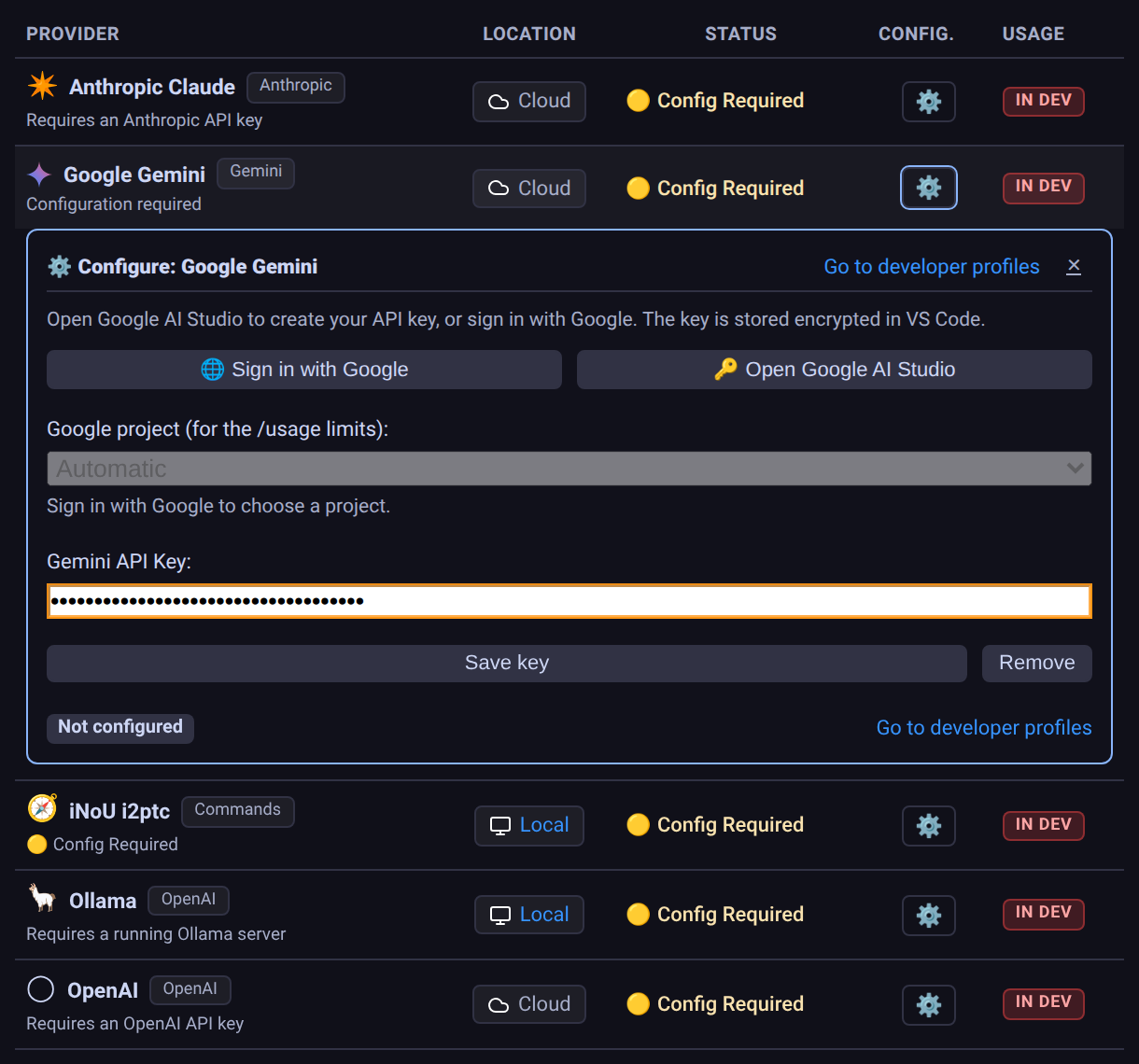
- Open CONFIG ▸ LLM models and click the ⚙️ on the Google Gemini row.
- Either click Sign in with Google, or Open Google AI Studio (aistudio.google.com/apikey) to create an API key and paste it into Gemini API Key.
- Click Save key. The row turns green and the models your key can use appear in the model lists.
3. Anthropic Claude
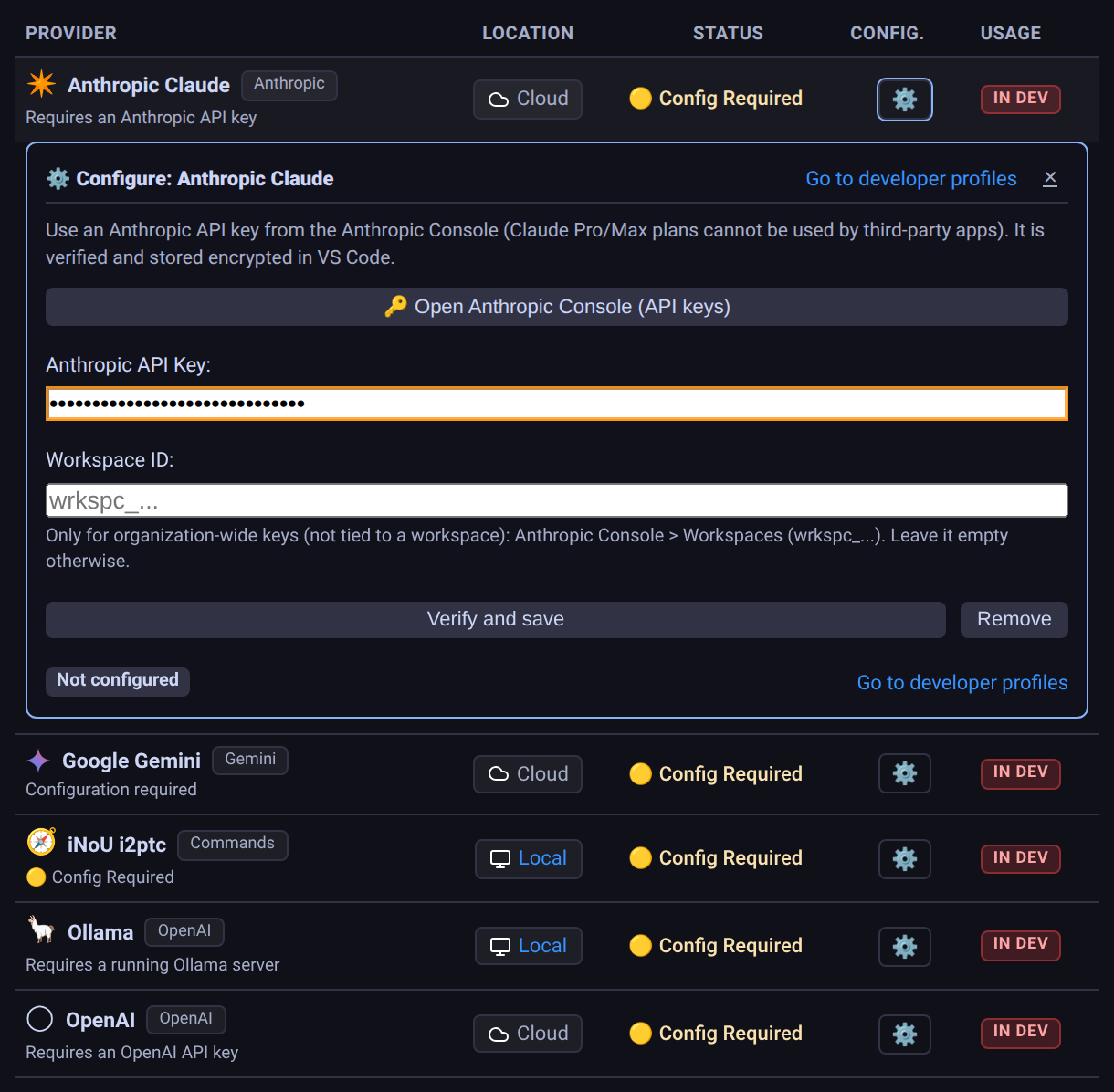
- Create an API key in the Anthropic console (it starts with
sk-ant-). - In CONFIG ▸ LLM models, click the ⚙️ on the Claude row, paste the key and save.
Prefer your Claude account to an API key? Use the Claude Code (CLI) row: iNoU finds or installs the CLI and you sign in with your account.
4. OpenAI models
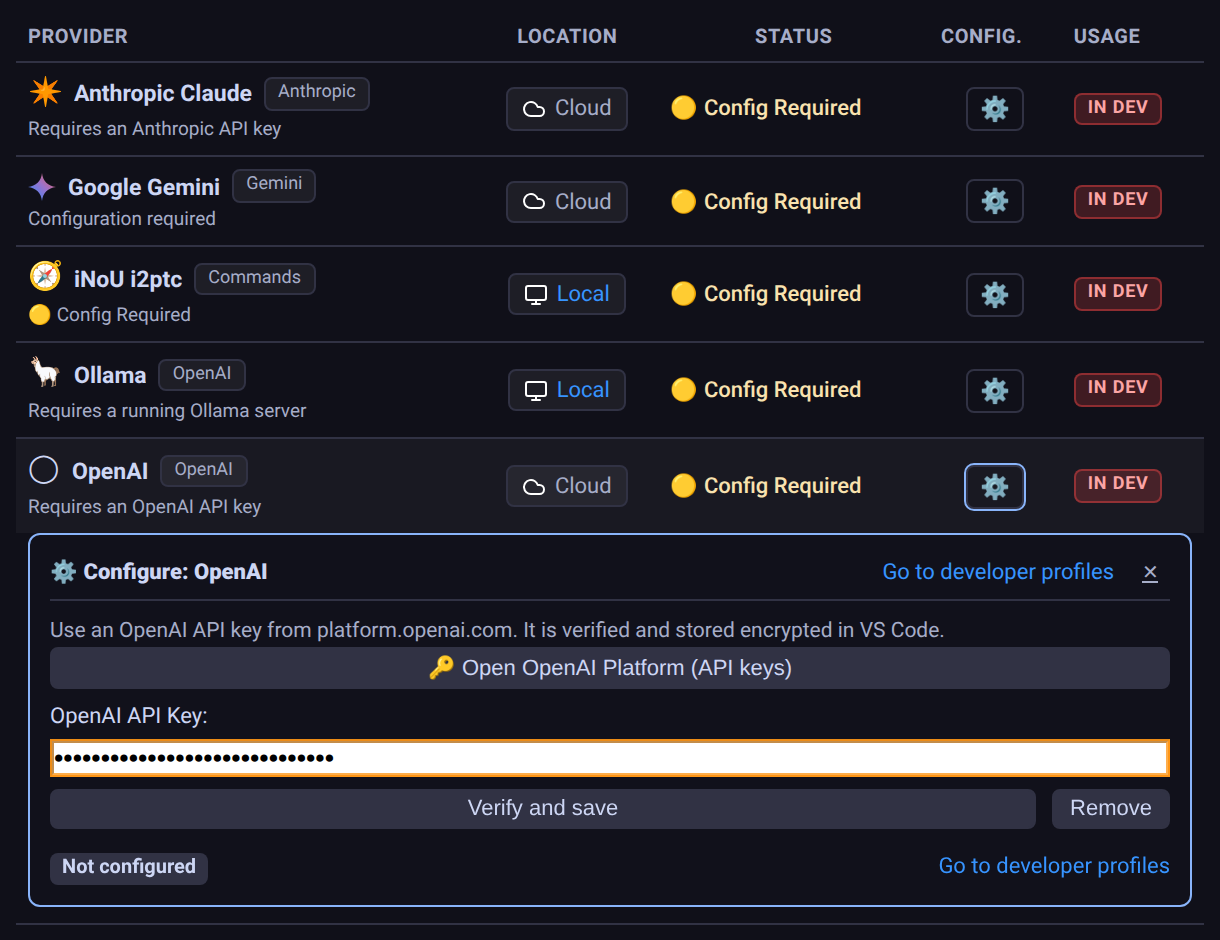
- Create an API key at platform.openai.com.
- In CONFIG ▸ LLM models, click the ⚙️ on the OpenAI row, paste the key and save.
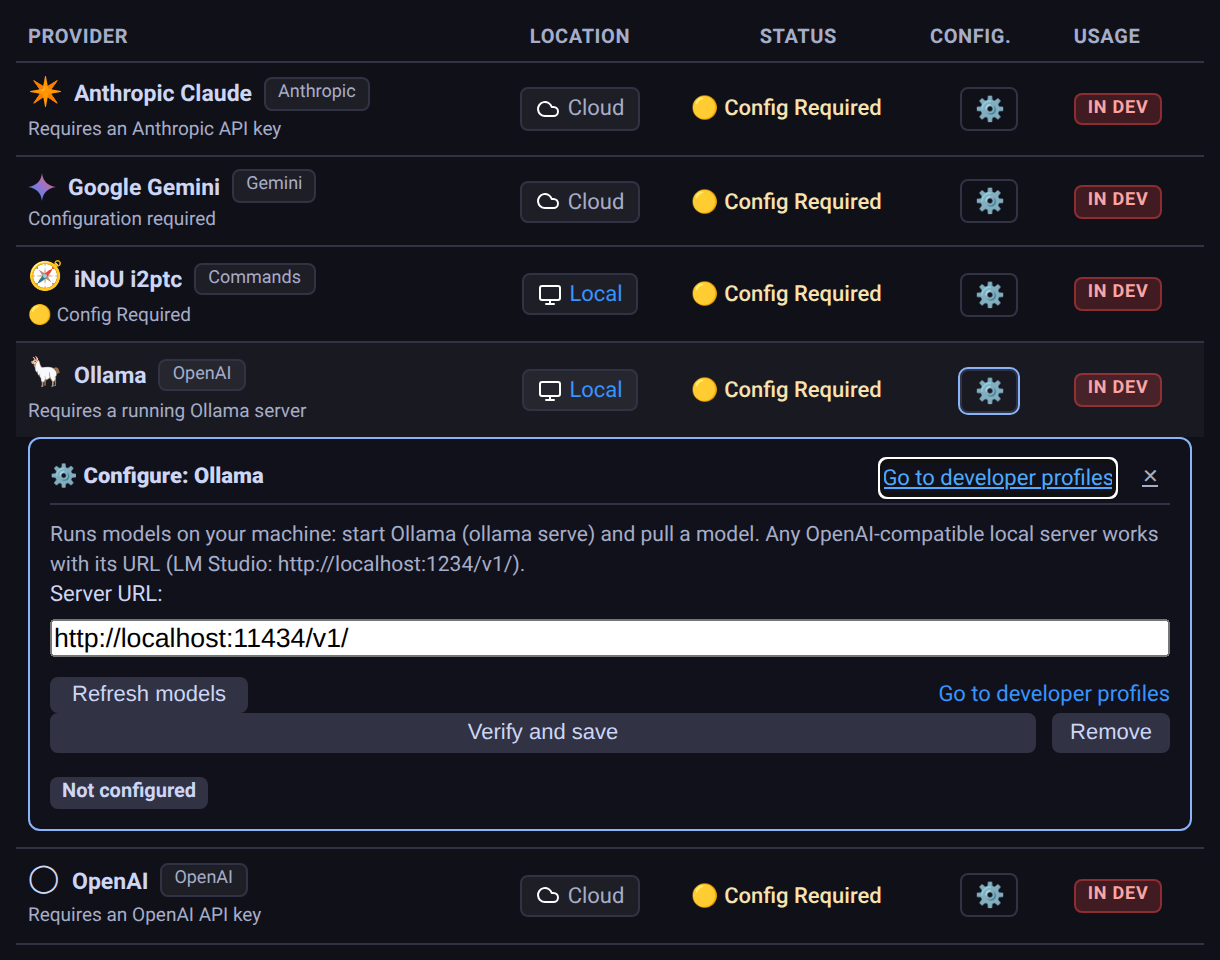
5. Llama and other local models (Ollama)
- Install Ollama and start it (iNoU can also start it for you: Start Ollama in CONFIG).
- In CONFIG ▸ LLM models, click the ⚙️ on the Ollama row. The default server URL is already filled in; any OpenAI-compatible local server (LM Studio, vLLM) works with its own URL.
- Pull a model, for example
ollama pull qwen2.5-coder. Every installed model shows up in the lists. - Not sure which models fit your machine? Run Diagnose and suggest models (or
/ollama-diagnose): iNoU reads your RAM and GPU, tries the pairs that fit on a small real task and suggests the first that works.
6. A Developer Profile that combines them
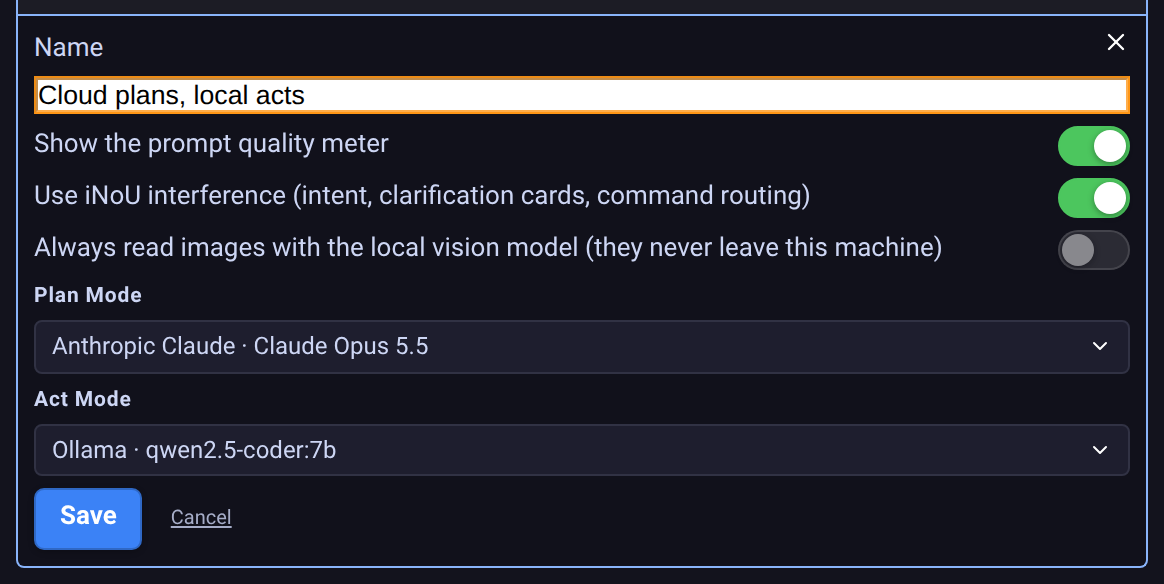
A Developer Profile pairs a PLAN model (understands your prompt and plans the change) with an ACT model (writes the code). They can come from different providers: Gemini plans and Ollama acts, or Claude plans and a local model acts.
- Open CONFIG ▸ Preferences ▸ Developer Profiles and click Add profile.
- Name it, then pick the PLAN and ACT models.
- Create another profile with only local models. When your credits run out or your internet fails, switch the chat to it: the chat history stays.
7. Trello
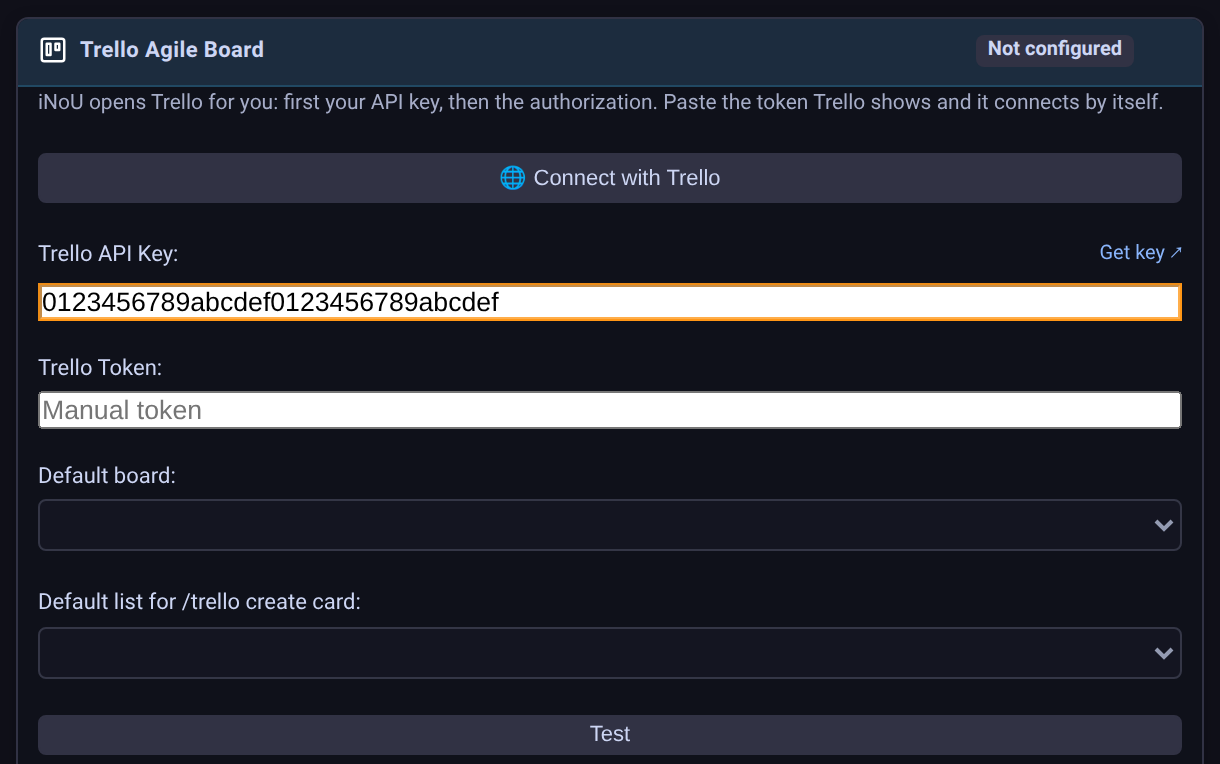
- Open CONFIG ▸ Integrations and connectors ▸ Trello.
- Click Connect with Trello. iNoU opens Trello's page with your API key: copy it into Trello API Key and click Connect again.
- Trello asks you to allow access and shows a token: paste it into Trello Token. iNoU connects by itself and tells you how many boards it found.
- Optional: set a default list for
/trello create card.
Then try /trello list boards. The same works from the chat in plain words and with no model.
8. An image model
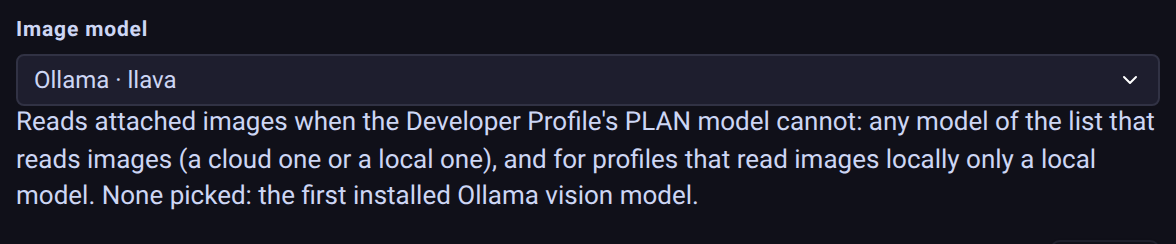
An image model reads the images you attach, so a local model can do it for free or only the image goes to a model you trust. In CONFIG ▸ Preferences, pick the Image model: any model that reads images, cloud or local. You can also type /set image <model>. With none picked, iNoU uses the first installed Ollama vision model.
9. Code completion
In CONFIG ▸ Preferences, turn on Code completion and pick the Completion model: a local model made for code, or any model of a cloud provider. You can also type /set autocomplete <model>|on|off.

Your first prompt
- Type your instruction. Use
@to mention files and/to see the commands. READmode blocks every file change and command; switch toWRITEwhen you want iNoU to act.- Review the proposed changes and apply them. Queue more prompts while it works: stop, edit or send them now.